
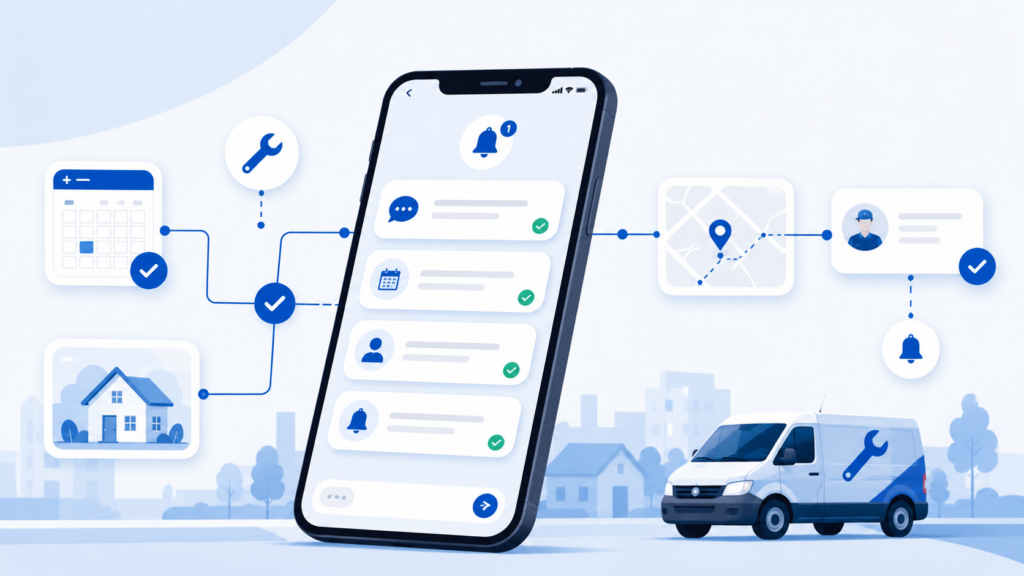
ServiceTitan can send your customers automated texts and emails at every stage of a job. Booking confirmations, dispatch alerts, appointment reminders, even technician GPS tracking. But here’s the thing: most companies either leave half of these turned off because nobody set them up during onboarding, or they have them on with the default templates and have no idea what their customers are actually receiving. Either way, you’re leaving a better experience on the table.
This post walks through every customer notification in ServiceTitan, what each one does, how to configure it, and what I’d actually recommend turning on.
Where to Find Customer Notifications
All of these live under Settings > Communications > Customer Notifications. When you land on that screen, you’ll see several notification types listed out: booking confirmations, reminder notifications, dispatch notifications, and job completion surveys. Each one has its own toggle, template, and settings. Before you touch any of these, one thing worth knowing: there’s a settings cog in the upper right corner of the screen. Click that and you’ll see options to enable or disable notifications for residential jobs, commercial jobs, or both. This is controlled by the customer type you select when creating a customer record. So if you only want notifications going to residential customers, you can turn off commercial here and those accounts won’t get any of these automated messages.
Booking Confirmations
This is the notification that fires the moment someone books a job. The customer gets a text or email confirming their appointment date, time window, and address. You can send it by text, email, or both.
The template is customizable using merge tags. You drag them in from a panel on the right side of the screen. Things like job date, arrival window start and end times, business unit name, and service location address. If you’re using arrival windows, I’d recommend tweaking the default template. The out-of-the-box version often just says something like “your job is scheduled for [date] at [start time].” That’s not great. Customers want to know the full window. Something like “we’ll be there between [arrival window start] and [arrival window end]” is more useful and sets better expectations.
One nice touch: some companies embed a YouTube link in the booking confirmation about what to expect during the service call. It’s a small thing, but it’s a professional move that builds trust before your technician even shows up.
Under the settings tab for booking confirmations, you’ll find the option to default the “send booking confirmation” checkbox on or off during call booking. For most companies, you want this set to yes. That way your CSRs don’t have to remember to check it off every time they book a job. It just happens automatically. One limitation to know about: you can’t customize these templates per business unit or job type. Whatever template you build here goes out for every booked job. So keep it general enough to work across your service lines.
Reminder Notifications and Automated Job Confirmations
Reminder notifications go out the day before a scheduled appointment. The default is 24 hours before the job’s start time, but you can also set a specific time of day if you’d rather all reminders go out at, say, noon the day before. Most people just stick with 24 hours and it works fine.
The more interesting feature here is automated job confirmations. When you enable this, the reminder text includes a prompt like “reply C to confirm.” If the customer replies with C, ServiceTitan automatically marks that job as confirmed on the dispatch board. You’ll see it change from the light blue (scheduled) to a darker blue (confirmed). This is a real time-saver for dispatchers. Instead of your team calling every customer the day before to confirm, the system handles it. You get more confidence that the customer will actually be home, and your dispatchers can focus on the board instead of the phone.
Just like with booking confirmations, you can exclude certain business units or job types from reminders if they don’t make sense for your operation.
Dispatch Notifications and GPS Tracking
This is probably the notification your customers care about the most. When your technician dispatches to a job, the customer gets a text or email letting them know someone is on the way. And if you have technician tracking enabled, they also get a link to see exactly where the tech is on a map. It’s the same experience people are used to from Uber or DoorDash, and it sets you apart from companies that just say “we’ll be there between 8 and 12.”
Before any of this works, you need GPS set up. Go to Settings and search for GPS. Under the integration section, you’ll see your GPS provider options. Most companies use the native GPS, which means ServiceTitan just uses the GPS on whatever device your technician is running the app on. Phone, tablet, it doesn’t matter. Native works fine for dispatch notifications and technician tracking. If you have a fleet tracking system with hardware on your vehicles and it integrates with ServiceTitan, you can use that instead. ServiceTitan also has their own option called Fleet Pro.
When you edit the native GPS settings, there are two checkboxes I’d recommend having enabled. First, automatically assign all newly created technicians. This saves you from having to manually add every new tech to the GPS devices list. Without it, a new technician’s dispatch notifications and auto-arrive won’t work until someone remembers to go in and assign them. The second checkbox controls geofencing for auto-arrive, which automatically marks the technician as arrived when they pull up to the job site.
For the dispatch notification template itself, you’ve got the same merge tag system. The default usually includes the technician’s name, their rating (if you’re using ServiceTitan’s in-house surveys), your business unit name, the service address, and the technician’s biography. The biography auto-fills from each technician’s profile under Settings > Technicians. If those bios are empty, that part of the message will just be blank. So make sure your team actually fills those in.
Settings Worth Checking
Under the additional settings tab for dispatch notifications, you’ll find an option for multi-technician jobs. If you have two techs assigned to the same job and they’re dispatching separately, do you want the customer to get a notification for every tech, or just the first one? In most cases, you probably just want the one notification. The customer doesn’t need to know that a helper is arriving 10 minutes later. You can also exclude specific business units or job types here, same as the other notification types.
One piece of advice: once you’ve got all of this set up, create a test job. Make yourself the customer, use a non-convertible job type, and have a technician dispatch to it. See what the customer actually receives. I recommend this because once in a while the template looks right in settings but something unexpected shows up in the actual message. Better to catch that before your real customers do.
Job Completion Surveys
ServiceTitan has a built-in survey that goes out after a job is completed. The customer rates their experience with either a 1-5 star rating or a 0-10 NPS (net promoter score). You pick which format you want in the settings.
I’ll be upfront here: not a ton of companies use these. The surveys are internal only. The results stay in ServiceTitan. They don’t get posted to Google or anywhere public. And the downside is they kind of burn the customer’s willingness to leave a review. If somebody already rated your technician through the ServiceTitan survey, they’re less likely to go leave you a Google review because in their mind they already “did the thing.” For most companies, your Google reviews matter more than internal scores. So if you’re running a separate review platform or using a reputation management tool, you might want to leave this one off and save that customer energy for where it counts.
Maintenance Reminders via SMS Campaigns
This one isn’t technically on the customer notifications screen, but it’s one of the most useful automated messages you can set up. If you sell maintenance memberships, you can create an SMS campaign that automatically texts members when their next service visit is coming up.
Go to Marketing > Create Campaign > Start from Scratch, then select SMS Text Message. You don’t need Marketing Pro for this. It’s included with Essentials and higher. Give the campaign a name like “HVAC Maintenance Reminders,” attach a tracking number, and select the built-in audience called “30 Day Recurring Service Reminder.” That audience automatically includes anyone with a recurring service event coming up in the next 30 days.
For the message itself, the default template is decent. But if you’re using online booking, I’d add your schedule appointment link. The merge tag for that is the “Schedule appointment customer portal link.” That way the customer can tap the link and book their own appointment without having to call in. Something like “schedule your appointment by replying here or calling us at [phone], or schedule online at [link].” That gives them three ways to book, which means fewer no-shows on your membership visits.
You also get to set up follow-up messages. The first text goes out 30 days before the service date. If they haven’t booked within 10 days, a second text fires. I’d pick different send times for each one. If the first goes out at 11:30 AM, try 6 PM for the follow-up. People who missed the first one during the workday might catch it in the evening. For send times in general, pick a time when your call volume is lower. These texts tend to trigger a spike of calls, and you don’t want that wave hitting when your CSRs are already slammed.
One important setting: make sure “stop sending texts when a recipient leaves the audience” is checked. That way if someone’s recurring service event gets pushed out or removed, they stop getting reminders that no longer apply.
Automatic Invoicing
This is under Settings > Invoicing. It controls whether invoices automatically get emailed to customers when a job is completed. If everything is toggled off, someone has to manually send every invoice, either the tech from the mobile app or someone in the office. For COD work, that’s usually unnecessary friction. Just let it send automatically.
The nice part is you don’t have to go all-or-nothing. You can enable auto-invoicing for specific job types, specific business units, or even specific technicians. And if you have individual customers who shouldn’t get automatic invoices, there’s a built-in tag called “Do Not Send Auto Invoice.” Apply that tag to the customer and they’ll be excluded. Make sure you use ServiceTitan’s default tag though. Creating your own custom tag with a similar name won’t work.
One quirk to know about: if a customer has multiple email addresses on their account, the automatic invoice goes to the most recently added email. Not the primary one. Not the first one. The last one added. If you need it to go to a specific email and it’s not the newest, the workaround is to remove that email and add it back so it becomes the most recent. Hopefully ServiceTitan fixes this eventually and lets you specify which email gets the auto-invoice, but for now that’s how it works.
Quick Tips for Getting This Right
Every customer and location record has bell icons next to each phone number and email. Those indicate whether that contact method is set up to receive notifications. If a customer says “stop texting me,” you can click the bell and turn off notifications for that specific number without removing it from the account. There’s also a chat bubble icon next to cell numbers that opens a text conversation with that customer, which is handy for one-off follow-ups.
You also need a default SMS and MMS number configured for text notifications to work. This should’ve been set up during onboarding, but it’s worth checking under your communications settings if texts aren’t going out. And make sure you have the chat feature enabled. It’s required for SMS campaigns.
If you want to manually send a booking confirmation after the fact, you can do that from the job flyout. Go to the appointments section, click the kebab menu (the three dots), and select “send booking confirmation.” Same idea if you want to manually trigger any other notification for a specific job.
Customer notifications are one of those things that take maybe 30 minutes to set up right, but they change how every single job feels to your customer from that point forward. The difference between a company that texts “your tech is 10 minutes away” with a tracking link and a company that just shows up unannounced is huge. Get these dialed in once and they run on autopilot.
If this was useful, the Ultimate ServiceTitan Guide goes much deeper. Searchable video lessons covering customer notifications, dispatch setup, memberships, invoicing, and every other part of ServiceTitan, built for every role on your team. Check it out here.