
Estimates are where revenue gets won or lost. A poorly presented estimate kills conversions. ServiceTitan has solid tools to make your estimates look professional, track customer engagement, and automate follow-up. Most contractors aren’t using all of them. Here’s what you have and how to use it.
Online Estimates vs. PDF Estimates: Which to Use
ServiceTitan lets you share estimates two ways: as a PDF attachment or as a link to an online estimate.
Always send the online estimate link. Skip the PDF.
Here’s why: the online estimate is trackable. When a customer clicks the link, ServiceTitan can alert you that they’re looking at it right now. That’s your moment to call and ask what they think. You can’t do that with a PDF.
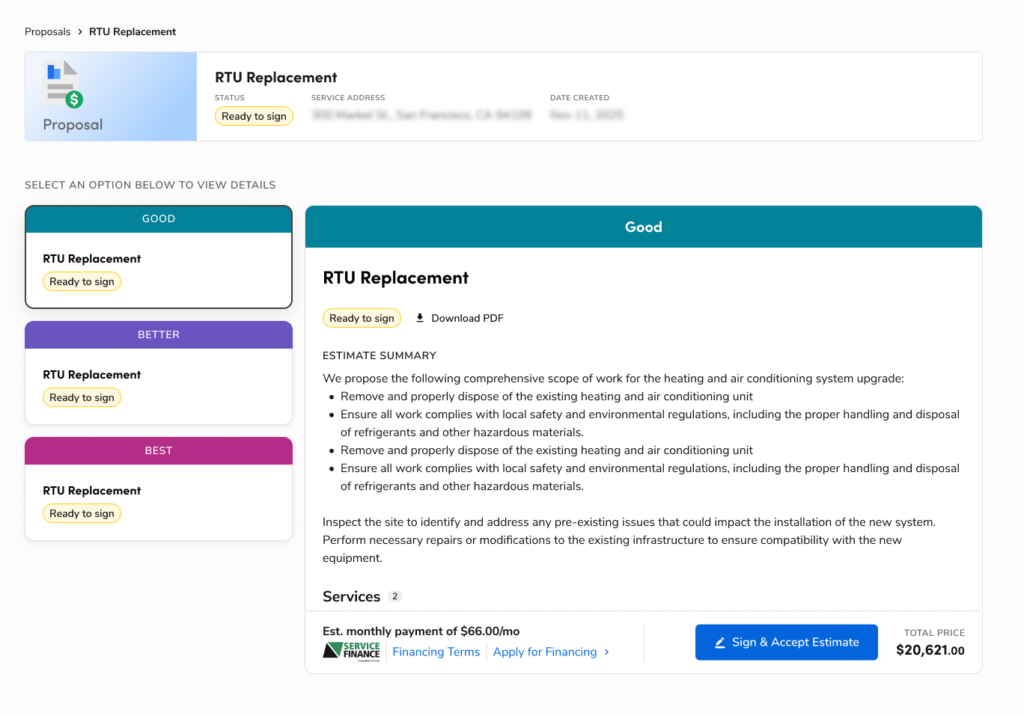
Online estimates also let customers accept and sign directly from the link. No printing, no scanning, no back-and-forth. They see it, they agree, they sign, and ServiceTitan records the acceptance automatically.
The only downside is you can’t customize the appearance. You get ServiceTitan’s default layout. If visual branding matters to you, the Document Template Engine (covered below) solves that.
Setting Up the Online Estimate Link in Your Email Template
The online estimate link only shows up in emails if you add the right merge tag to your estimate template.
Go to Settings → Invoicing and Email → Estimate tab. Find the merge tags section and look for Online Estimate Link. Add it to your template. From then on, every estimate email automatically includes a link to the customer’s online estimate view.
While you’re there, configure two things:
Online estimate expiration. How many days until the link expires? If you honor pricing for 30 days, set it to 30.
Auto-resend. ServiceTitan can automatically resend the estimate email if it hasn’t been accepted after a certain number of days (5, 10, 20, 30, or custom). This one feature alone recovers jobs that would’ve just gone cold.
Tracking Customer Engagement with Alerts
To get notified when a customer views or accepts an estimate, set up alerts.
From Settings, go to your alerts configuration and add two alerts:
Customer Viewed Online Estimate. Fires when the customer first clicks the link.
Customer Signed Online Estimate. Fires when they accept it.
Route these to the estimate creator (your salesperson or technician) so they know exactly when the customer is looking. That’s your follow-up window. A call within 15-20 minutes of the view alert can significantly improve close rates.
Controlling Line Item Pricing Visibility
On mobile (and office with certain feature gates), you can control whether customers see individual line item prices or just the total.
Your options:
Show All Pricing. Customers see the price for every item plus the total.
Hide Line Item Prices. Customers see only the total, not the breakdown.
Don’t Show Pricing. Don’t use this one for customer-facing estimates.
Whatever you choose on the estimate screen before sending carries over to both the PDF and the online estimate link.
Want line item pricing permanently hidden no matter what? There’s a Hide Item Prices feature configuration in Settings → Feature Configurations. Turn it on and no one can accidentally send estimates showing line item prices.
Multi-Estimate Presentations: Good, Better, Best
ServiceTitan supports multiple estimates on a single job. The classic Good/Better/Best structure that’s proven to increase average ticket.
When a customer gets a link with multiple estimates, they see them side by side on desktop. On mobile, they see one at a time and swipe horizontally to see others.
That mobile swipe thing is a training and communication issue. Record a 30-second screen recording showing how to swipe between estimates on mobile. Include the link in your estimate email. Customers who don’t know they can swipe might never see your Better or Best option. That’s lost revenue.
The Document Template Engine: For When You Want Full Control
ServiceTitan has a Document Template Engine under Settings → Operations → Document Templates. It lets you build fully customized document layouts with a drag-and-drop interface.
At the time of writing, the Document Template Engine supports invoices, commercial service agreements, and estimates (estimates may be in limited access depending on when you’re reading this, so check your account).
With the Document Template Engine you can:
– Show or hide specific fields
– Rearrange columns and sections
– Add your logo and branding
– Create multiple templates for different scenarios (one with line item pricing, one without)
– Choose from the office which template to send on any estimate
Use this if ServiceTitan’s default estimate appearance doesn’t work for your brand. The default is functional but not customizable. The Document Template Engine is.
Before you invest time in the Document Template Engine, check whether estimates are fully available in your account. Features roll out gradually, so your access may differ.
Sending Estimates from the Office Side
Sending from the office gives you a few extra options not available on mobile:
- Set a custom expiration date, or just use your default
- Choose which estimates to include (specific ones or all)
- Decide whether to include PDF attachments. Uncheck this so they only get the online estimate link.
You can also resend estimates manually at any time from the estimate screen.
Auto-Resend: The Follow-Up That Runs Itself
Turn on auto-resend. Seriously.
A lot of potential revenue dies between “estimate sent” and “estimate accepted.” Usually it’s not that the customer decided not to buy. They got busy, forgot, and nobody followed up.
Auto-resend sends the estimate again automatically after a set number of days if it hasn’t been accepted. It’s a completely hands-off way to put your estimate back at the top of their inbox.
You don’t need Marketing Pro. It’s a core feature. Turn it on.
Setting an Expiration Date That Works For You
The expiration date on online estimates does two things: it creates urgency for the customer and protects you from honoring a price you quoted months ago before material costs went up.
Think about your real pricing stability. If material costs fluctuate frequently, a shorter window (14-21 days) makes sense. If pricing is stable, 30-45 days is reasonable and gives customers time to decide without feeling rushed.
Whatever you set as the default in your estimate email settings applies automatically. You can override it case-by-case from the office when sending.
Frequently Asked Questions
Can customers accept estimates directly from the online estimate link?
Yes. There’s an accept/sign button on the online estimate. When they sign it, ServiceTitan records the acceptance automatically.
What happens when an online estimate expires?
The link stops working. The customer will see an expired message if they try to open it. You can extend it manually from the office side.
Can I see which estimates haven’t been viewed or accepted?
Yes, through reporting. The estimates data set includes view and acceptance status, so you can build a report showing all open estimates with their status.
Does the online estimate show images from my pricebook?
If images are attached to your pricebook items, you have the option to include them when sending the estimate. There’s a checkbox for that in the send dialog.
What’s the difference between the Document Template Engine and the default estimate format?
The default estimate format is what ServiceTitan provides — functional but not customizable. The Document Template Engine lets you build custom layouts with your own branding, column arrangements, and field visibility. If you want full control over how estimates look, use the template engine.
The Bottom Line
ServiceTitan’s online estimates are a real competitive advantage when you use them right. The trackable link, the auto-resend, the customer alerts turn a static PDF into an active sales tool. Set up your email template with the merge tag, configure your expiration and auto-resend defaults, turn on engagement alerts, and teach your customers how to navigate multi-estimate presentations on mobile. Small changes in how you handle estimates have a big impact on close rates.
For more on building great estimates in ServiceTitan, including the Good-Better-Best structure and estimate-to-job conversion, see the Estimates and Sales section of the Blue Collar Nerd guide.
Related guides: ServiceTitan Customer Portal and ServiceTitan Configurable Services.