
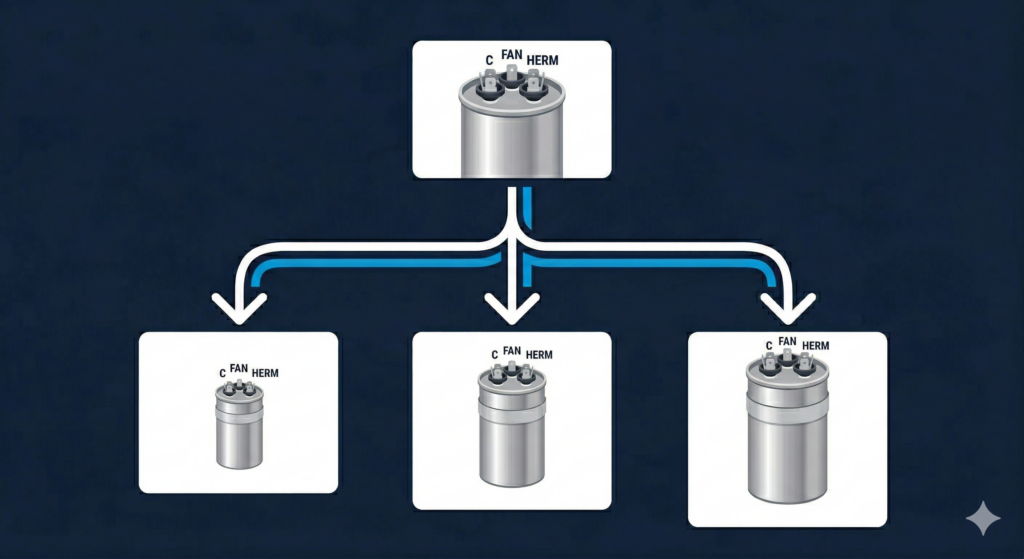
If your pricebook has dozens of nearly identical services, one for each variation of the same part, Configurable Services fixes that. It’s one of those ServiceTitan features that seems small until you realize how much time it’s been costing you.
The Problem It Solves
Parts come in multiple variations. An HVAC capacitor, for example, comes as 30/5, 35/5, 45/5, 55/5 — each with its own SKU and supplier cost.
Before Configurable Services, you had two bad options. Create a separate service for every variation, which bloats your pricebook. Or use one generic service and manually adjust materials each time, which breaks your Dynamic Pricing automation.
Configurable Services solves this. You get one service in the pricebook, and when you add it to an estimate or invoice, you choose the specific material variation. One service, all the variations.
How It Works
Here’s how it works:
-
You have a generic material in your pricebook like “Dual Run Capacitor — Generic”, plus specific SKUs (35/5, 45/5, etc.) for what you actually order.
-
Enable Configurable Material on the generic item and link all the specific variations to it.
-
Tie the generic material to a service like “Remove and Replace Capacitor”.
-
When you add that service to an estimate or invoice, a flyout appears asking which specific material to use. Pick one, and Dynamic Pricing calculates the price based on that part’s actual cost.
Result: one clean service in your pricebook, correct materials for tracking and purchasing, and accurate pricing. No duplicate services cluttering things up.
Setting Up Configurable Services Step by Step
Step 1: Set up your materials first
You need the generic material and all the specific SKU variations already in your Materials tab. Specific SKUs are what you actually order from your supplier. The generic material is the umbrella.
Step 2: Enable Configurable Material on the generic item
Click into the generic material and go to the Configurable Material tab. Enable it.
In the variations section, add all the specific materials that are versions of this generic item. For capacitors, that’s 30/5, 35/5, 45/5, 55/5, and whatever else you carry.
If you have PriceBook Pro with Titan Intelligence, there’s a continuous learning option that uses AI to map variations automatically by analyzing your job history. If you have Core pricebook, you’ll link the variations manually.
Step 3: Link the generic material to a service
In the service you want to make configurable like “Remove and Replace Capacitor”, link the generic material in the linked materials section. Not the specific SKUs. The generic material is the one with all the variations attached.
Step 4: Test it
Build a test estimate and add the service. A flyout should appear asking you to choose a material variation. Pick one, save, and check:
- The correct specific material shows on the estimate
- The price updates to reflect that material’s cost if Dynamic Pricing is enabled
- The description shows the variation name like “Dual Run Capacitor 35/5” so customers know exactly what they get
If all three work, you’re good.
Two key behavior settings
Under the Materials tab, a settings cog controls how configurable materials work:
Allow “Find More” — if enabled, people in the field or office can search the entire pricebook if the variation they need isn’t in the list. Turn this off if you want to lock down which materials can be used for each service. Leave it on if you want flexibility.
Display variation name in description — when enabled, the specific material name gets added to the service description on the estimate automatically. Customers see exactly what they’re getting. Keep this on.
How configurable services work with Dynamic Pricing
When you add a configurable service and choose a specific material, Dynamic Pricing recalculates based on that material’s cost. A 45/5 capacitor costs more than a 30/5, and the price your customer sees reflects that difference automatically.
Without Configurable Services, you’d either need separate price rules for every size (nightmare to maintain) or use a single generic cost (which is wrong for most jobs).
You can also configure Dynamic Pricing to always use the generic material’s cost regardless of which variation you pick. This gives you one price per service no matter what. Some companies like this for simplicity. Others prefer the exact-cost approach for accuracy. It depends on how you price.
This works for equipment too
Everything above applies to equipment. If you sell equipment in multiple variations (sizes, colors, models), set it up the same way. Just go to the Equipment tab instead of Materials.
Pricebook maintenance gets easier
One underrated benefit is what it does to your maintenance work long-term. If you have one “Replace Capacitor” service instead of twelve, you update one service when pricing changes. Your techs find one service on mobile. You organize one thing in your category structure. That sounds small, but across a full pricebook with hundreds of materials and services, the difference is huge. Less bloat means fewer mistakes and faster techs.
Frequently Asked Questions
Do I need PriceBook Pro to use Configurable Services?
No. Configurable Services comes with standard (Core) pricebooks. PriceBook Pro adds Titan Intelligence continuous learning which automates the mapping, but manual setup works without it.
Can a technician use this on the mobile app?
Yes. The material selection flyout works in the field and in the office. Techs choose the variation from their phone, and it attaches correctly to the estimate or invoice.
What if a technician adds the service without choosing a variation?
The generic material gets attached instead of a specific SKU. Your inventory tracking, purchase orders, and job costing won’t match reality. Train your team to always make the selection.
Can one service have multiple configurable materials?
Yes. If a service needs multiple parts with variations (like a capacitor and a contactor), tie multiple generic materials to it. Each one prompts its own flyout.
Does the variation show on the customer’s invoice?
Yes, if you have “Display variation name in description” enabled. The specific variation gets added to the service description on both estimates and invoices.
The bottom line
Configurable Services is easy to overlook until you’re drowning in duplicate pricebook items. Set it up right and it cuts redundancy, keeps Dynamic Pricing accurate, and makes pricebook navigation faster for your techs. It just takes some upfront work to connect the generic and specific materials.
For more on building and maintaining a solid pricebook in ServiceTitan, check out the Pricebook section of the Blue Collar Nerd guide.
Related guides: ServiceTitan Dynamic Pricing and ServiceTitan online estimates.