 Skip to content

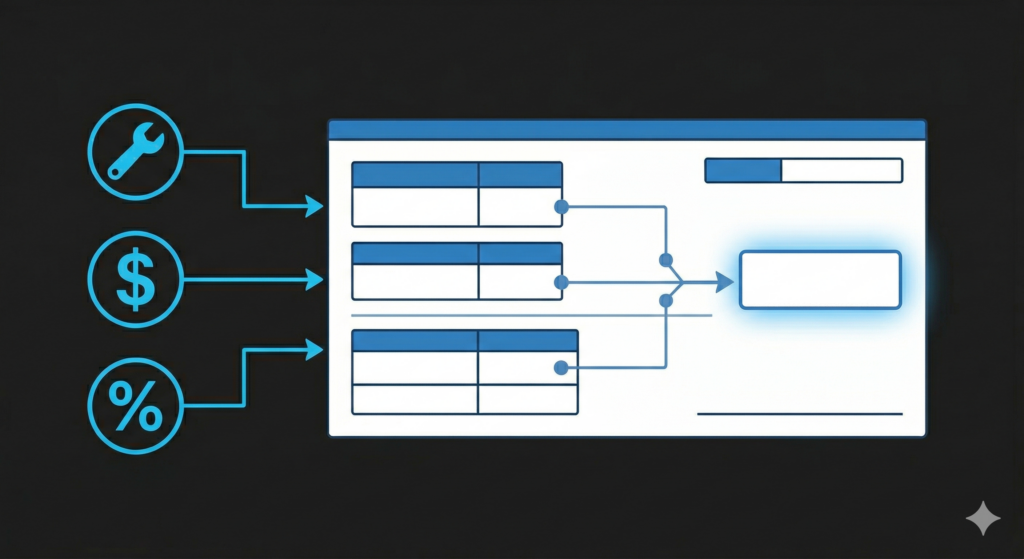
Performance pay is one of the biggest levers you have as a business owner. Get it right, and your techs are motivated, your company goals stay aligned, and payroll runs on autopilot in ServiceTitan. Get it wrong, and you’re untangling commission confusion and payroll mistakes every two weeks while your team wonders what they’re actually making.
This guide walks through ServiceTitan Configurable Payroll. What it is, how to set it up, and how actual companies use it.
What Is Configurable Payroll and Who Gets It?
ServiceTitan has two versions of performance pay. Legacy Performance Pay comes with the middle tier package and handles basic commission percentages and spiffs. Configurable Payroll is on the Works package and gives you way more options: sliding scales, TGL bonuses, sold-hour-based pay, and more.
This guide is about Configurable Payroll. If you’re on the middle tier, the same ideas apply but you have fewer tools. On the Basic package, you don’t have performance pay in ServiceTitan at all.
A Word Before We Start: Keep It Simple
Before we dig into the mechanics, here’s the thing: don’t overcomplicate your pay structure.
There’s a pattern in this industry where companies build increasingly elaborate commission tables. Then they wonder why their techs are anxious about paychecks and why payroll becomes a weekly nightmare. When a pay structure needs a spreadsheet to explain it to your team, it’s too complicated.
A good pay structure is one your techs can explain to each other at lunch. The goal is alignment, not complexity. If you’re building something that needs a three-step flowchart, simplify it first. Then see if ServiceTitan can handle it.
That said, Configurable Payroll can do a lot. Here’s how it works.
How Payroll Profiles Work
Configurable Payroll is organized into profiles. Each profile holds one or more pay rules, and each technician gets assigned to exactly one profile.
Go to Settings → Payroll → Configurable Payroll → Profiles.
You’ll see a Default profile that came over from your Legacy Performance Pay settings. Create new profiles for each distinct technician type you have. Most companies end up with a Service Technician profile, a Salesperson profile, and an Installer profile.
When you create a profile, you assign employees to it right away. A technician can only be on one profile at a time.
The Pay Rule Types
When you build a rule inside a profile, you pick from these:
Performance Bonus — commission paid to the tech doing the work, based on the invoice. Use this for service techs who earn a percentage of their jobs.
Sales Commission on Invoice — paid to whoever is marked “Sold By” on the invoice. This is for salespeople closing estimates.
Sales Commission on Invoice Item — paid to the sold-by person on a specific invoice item. Good for product spiffs at the item level.
Item Bonus — paid to the tech doing the work on a specific invoice item, regardless of who sold it. Use this to reward techs for installing or performing certain services.
TGL Turnover Bonus — Paid on Installation — paid to a tech when a tech-generated lead they turned over becomes a completed installation. The lead has to sell and close all the way through.
TGL Turnover Bonus — Paid When Lead Is Set — paid immediately when the tech turns over a lead, no matter if it sells. Simpler and more immediate.
Example 1: Service Tech Percentage Commission
A typical structure for HVAC service techs is a percentage of the invoice subtotal for every job they run.
Here’s the setup:
1. Create a profile called “HVAC Service Tech”
2. Assign all service techs to it
3. Add a Performance Bonus rule
4. Set a job filter: Invoice Business Unit = HVAC Service. This keeps the rule from kicking in if a service tech helps on an install.
5. Pay calculation: Flat dollar amount → Invoice Subtotal → Apply More → Multiply by Percentage → 5%
Done. Every HVAC service invoice calculates 5% of the subtotal and credits it to the tech who ran the job.
Why invoice business unit instead of tech business unit? If your techs occasionally help on an install, filtering by invoice business unit makes sure they’re paid based on the job type, not just their main role.
Example 2: Salesperson Commission with Sliding Scale
Want to reward higher-producing salespeople with higher commission rates? Here’s how:
- Create a profile called “HVAC Sales”
- Add a Sales Commission on Invoice rule
- Optional: add a discount filter like invoice discount ≤ 3% to tie commission rates to how much they discounted
- Pay calculation: Flat dollar amount → Invoice Subtotal → Apply More → Multiply by Percent on Range
Set your percent on range like this:
– $0–$3,000 → 5%
– $3,001–$5,000 → 6%
– $5,001–$99,999 → 8%
Then: Apply More → Flat dollar amount → Invoice Subtotal (to multiply the percentage by the actual invoice amount).
Cap the final range at something high like 99,999 so no sale falls outside your table. If you cap at $30,000 and someone closes a $35,000 job, they get nothing on that amount. Go high instead.
One note on discount filters: for this to work, your salespeople need to use the actual Discounts and Fees feature in ServiceTitan when they apply discounts. If they just manually edit prices down, the system won’t see the discount.
Example 3: Installer Commission with Tech Splits
Installers often work in two-person crews splitting a commission pool. Here’s how to set it up:
- Create an “HVAC Installer” profile
- Add a Performance Bonus rule
- Pay calculation: Flat dollar amount → Commissionable Base (select which costs to deduct) → Apply More → 10% → Apply More → Tech Split Rate
Tech Split Rate divides that 10% pool between the technicians on the job based on their split percentages. A 60/40 split means one gets $600 on a $10,000 job and the other gets $400.
Example 4: TGL Flat-Dollar Bonus
Let’s say you want to pay techs $100 every time they turn over a tech-generated lead, period. Regardless of whether it sells.
This one confuses people because there’s no “pay $100 per lead” button. But here’s how to do it:
- Add a TGL Turnover Bonus Paid When Lead Is Set rule
- Pay calculation: Flat dollar amount → Invoice Subtotal → Apply More → Multiply by Dollar on Range → Set range: $0–$99,999 = $100
What’s happening: you’re saying “on any invoice between $0 and $99,999 (which is every invoice), pay $100.” The invoice subtotal doesn’t matter here. You’re just using the range to trigger a flat payout.
It’s a workaround, but it works.
Example 5: Sold-Hour-Based Pay
Want to pay techs based on sold hours from their pricebook items instead of invoice totals?
- Create a profile
- Add an Item Bonus rule
- Pay calculation: Sold Hours → Invoice Item Sold Hours → Apply More → Flat dollar amount → Set on Technician
“Set on Technician” creates a custom payroll field on each tech’s profile. You enter each tech’s per-sold-hour rate individually. Or upload a CSV to bulk-set rates across your team.
This pays techs based on sold hours for each item they work on, not the actual time they spent. It rewards efficiency and aligns with flat-rate pricing.
Testing Before Going Live
Configurable Payroll has a Test button in the profile builder. Use it. Point it at a date range and some technicians, and it runs the rules against real historical invoices to show you what the pay would have been.
Do this before you activate a new profile. Run it against a recent pay period, then spot-check a few invoices by hand. If the numbers look right, you’re good. If they don’t, something’s off. It’s way better to catch that in testing than after you’ve already paid someone wrong.
Common Gotchas
Performance pay not showing up? Make sure the invoice is posted and in a closed accounting period. Like job costing, payroll calculations need finalized invoices.
Discounts not triggering discount filters? Make sure discounts are applied through Discounts and Fees, not through manual price edits.
Techs getting paid on the wrong job type? Add a job filter to your rules based on invoice business unit to keep commissions tied to the right work.
Overwhelmed by options? Start simple. One performance bonus rule for service techs, one commission rule for salespeople. Get those working and tested first. Then add sliding scales and TGL bonuses.
Frequently Asked Questions
Can a technician be on multiple configurable payroll profiles?
No. Each technician is assigned to exactly one profile. You can combine multiple pay rules within a single profile to handle different scenarios.
What’s the difference between Performance Bonus and Sales Commission on Invoice?
Performance Bonus pays the person doing the work. Sales Commission on Invoice pays the person who sold the job (marked as “Sold By”). They can be the same person or different people.
Can I set different per-sold-hour rates for different technicians?
Yes. Use the “Set on Technician” option in the pay calculation, which creates a custom field on each tech’s profile where you enter their individual rate.
Can I pay based on monthly revenue totals?
Not natively in ServiceTitan. Configurable Payroll calculates on a per-invoice basis. For revenue-based targets, you’d need to track that outside of ServiceTitan and make manual payroll adjustments.
What report do I use if I’m on Configurable Payroll?
The Master Pay File report. Note: you cannot use the Payroll Detail report if you’re on Configurable Payroll.
The Bottom Line
ServiceTitan Configurable Payroll is powerful. But power only matters when you use it deliberately. Build the simplest structure that hits your goals, test it against real data before you go live, and keep pay rules your team can actually understand. The technology can handle complexity. The question is whether that complexity actually serves your people and your business.
Related guides: ServiceTitan job costing and ServiceTitan dashboards.