 Skip to content

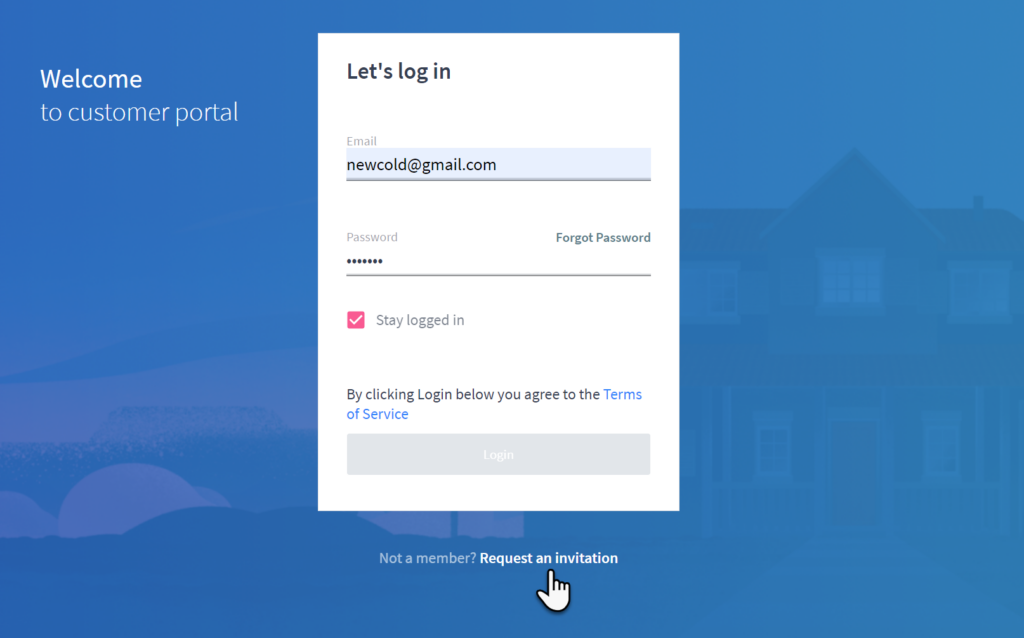
Modern customers expect self-service. They want to check their invoice, see membership status, and request an appointment without calling your office. ServiceTitan’s Customer Portal gives them that. It also runs the infrastructure behind other features you may already use, like online estimates and SMS invoice links.
Here’s what the Customer Portal does, how it connects to ServiceTitan, and how to set it up right.
The Customer Portal Is More Than It Looks
Before you set up the portal, understand this: the Customer Portal isn’t just the login page your customers use. It’s the infrastructure behind several ServiceTitan customer-facing features.
When a customer clicks an online estimate link, that runs through the Customer Portal infrastructure. When they click an SMS invoice link to pay, that’s the Customer Portal too. Even Visit Assistant links on mobile use it.
So even if you’re not actively promoting the “Customer Portal” login, you might already be using it. Understanding the portal as a whole shows you how all these customer-facing pieces connect.
Enabling the Customer Portal
The Customer Portal is a gated feature you can enable yourself. No support ticket needed.
Go to Settings → Feature Configurations and search for “Customer Portal.” Enable it from there.
Once enabled, you get two new areas:
- A Customer Portal merge tag in your email templates (under Settings → Invoicing and Email). Add this to your invoice template so customers always have a direct link.
- Customer Portal settings under Settings → Communications → Customer Portal. This is where you configure what customers can see and do.
Customer Portal Settings: What to Configure
Appointment Scheduler. If enabled, customers can request appointments through the portal. These requests don’t go straight to the dispatch board. They land in the booking screen sidebar (same place as Google Local Services requests), where your CSRs review them and decide whether to book. This is good. It gives you a human checkpoint before anything hits the calendar.
Membership Visibility. Controls whether customers can see their membership status in the portal. If you run memberships, enable this. You can also control which statuses show (active, canceled, suspended, expired). Usually you want active memberships visible and use your judgment on the others.
Visits Tab Message. When a customer views their visits, you can display a custom message. Use it to direct them to call or schedule. Something like “Call us at [number] or click Schedule Appointment to request your next visit” works well.
Invoice Filter. Determines which invoices customers can see. You can filter by export status or review status. This keeps customers from seeing invoices still in process or that you haven’t reviewed yet.
Hostname. Your customer portal URL. It’ll be something like yourcompanyname.myservicetitan.com. Set it to something recognizable.
Business Unit Filtering. Lets you exclude certain business units from the customer portal. If there are business units where you don’t want customers accessing invoices (maybe a commercial division with specific billing arrangements), uncheck them here.
What Customers See When They Log In
The Customer Portal gives customers access to these sections:
Invoices / View Your Balance. Shows outstanding invoices, total balance due, and anything past due. Customers can see what they owe and, depending on your setup, may be able to pay directly.
History. Shows past completed jobs and lets customers download invoices. Good for customers who need records for warranty or home sales.
Memberships. If enabled, shows active (and optionally other-status) memberships. Customers can see what their plan covers. This is a customer service win. Fewer calls asking “what does my membership include?”
Equipment. If equipment is associated with the customer’s account in ServiceTitan, it shows here. Good for customers who want a record of what you’ve serviced.
Request an Appointment. If you’ve enabled the appointment scheduler, customers get a scheduling widget identical to your default web scheduler. Their request goes to your booking screen for a CSR to review.
The Login Process for New Customer Portal Users
First-time access works like this:
- Customer receives an email with the Customer Portal link (via your merge tag)
- They click the link and reach a login screen
- Since it’s their first time, they click to create an account
- They enter the email address associated with their account in ServiceTitan. This is the critical step. The email must match what you have on file. If it doesn’t match, they can’t create an account.
- They set a password and they’re in.
The matching email requirement is worth telling your CSRs about. When you book a job, getting the correct email address matters for communication and because it’s the key that lets customers access their portal.
The Customer Portal Is Actively Being Updated
The customer portal in ServiceTitan is under active development. At the time this was written, a significant redesign was in progress. By the time you read this, what customers see may look different.
The settings and infrastructure (how you enable it, how you configure it, how the email merge tag works) are more stable. The customer-facing UI is what changes. If something looks different from what’s described here, that’s why.
Check the ServiceTitan release notes or BCN’s update library for the most current visual walkthrough.
Connecting the Portal to Your Email Templates
The most important step after enabling the portal is making sure customers can actually find it. Add the Customer Portal Link merge tag to your invoice email template. Every invoice email should include a link to the portal. It’s low-friction, customers can access it from any device, and it cuts inbound calls about “can you send me a copy of my invoice?”
You can also add the link to your post-service follow-up emails, membership confirmation emails, and marketing campaigns. Anywhere you’re already emailing customers, add the portal link.
Frequently Asked Questions
Does the Customer Portal replace the need for CSRs?
No. Appointment requests go through a human review step before hitting the dispatch board. The portal handles self-service for information access and requests — not for unmediated booking.
Can customers pay through the Customer Portal?
This depends on your ServiceTitan Payments setup. If you have online payments enabled, customers may be able to pay directly. Check your Payments settings for how the portal integrates with your payment processing.
What if a customer’s email in the portal doesn’t match their ServiceTitan record?
They won’t be able to create an account. The email used for portal signup must match the email on their ServiceTitan customer profile. Train your CSRs to capture email addresses accurately at the time of booking.
Can I control which business units’ invoices show in the portal?
Yes. In Customer Portal settings, you can uncheck specific business units to exclude their invoices from the portal view.
Is the Customer Portal the same as the online estimate link?
They use the same infrastructure, but they’re different things. The online estimate link takes a customer directly to their estimates. The Customer Portal is a full logged-in experience where customers can see invoices, memberships, history, and equipment.
The Bottom Line
The ServiceTitan Customer Portal is a customer experience investment that pays off two ways: fewer inbound “what do I owe” and “can you send my invoice” calls, and a more professional experience for your customers. Enable it, add the link to your email templates, and make sure your team captures customer email addresses accurately at the time of booking. The rest is automatic.
For more on the customer-facing features that connect to the portal infrastructure, including online estimates, SMS invoice links, and appointment schedulers, explore the Blue Collar Nerd guide’s customer experience section.
Related guides: ServiceTitan online estimates and ServiceTitan membership setup.