 Skip to content

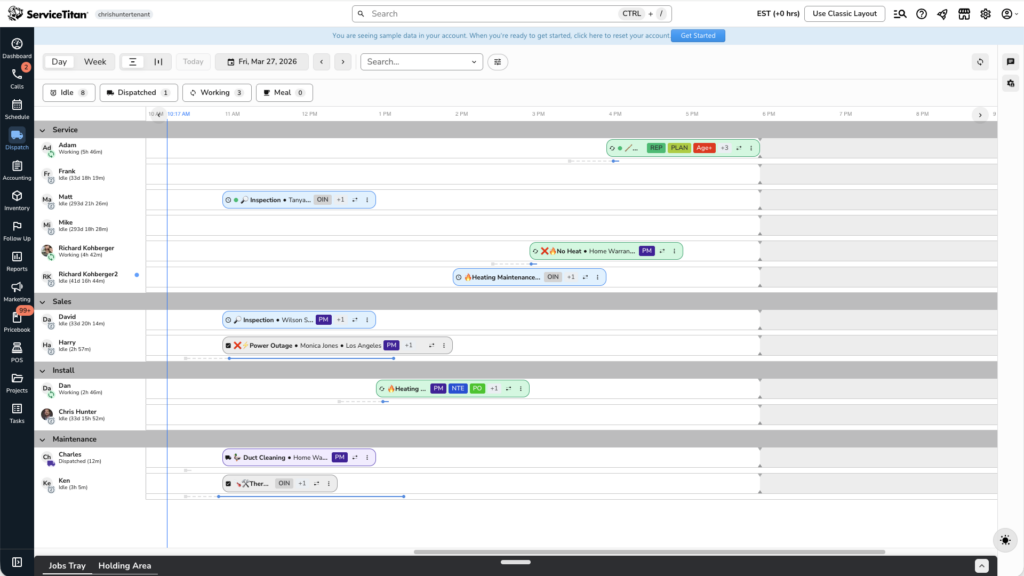
If you’re new to dispatching in ServiceTitan, the board can feel like a lot. Colors, tabs, bubbles, dots — it’s not obvious what any of it means when you first sit down. But once you know what you’re looking at, it makes sense fast. This guide walks through every part of the dispatch board so you can actually use it, not just stare at it.
Horizontal vs. Vertical View
The board comes in two layouts. In horizontal view, time moves left to right. Earlier jobs are on the left, later ones on the right as you scroll. You can fit more technicians on screen at once this way. In vertical view, time moves top to bottom. You scroll down to see later in the day, but you see fewer techs at a time since the board paginates.
There’s no wrong answer. Try both. Some dispatchers find vertical easier to read, others stick with horizontal. The toggle is at the top left of the board.
What the Colors Mean
Every job bubble on the ServiceTitan dispatch board has a color. Here’s what each one means:
- Light blue — Scheduled, not confirmed
- Dark blue — Scheduled and confirmed by the customer
- Purple — Dispatched (tech has been sent the job)
- Green — Working (tech is on site)
- Yellow — Paused (only techs can pause a job, from the mobile app)
- Light gray — Done
Customers confirm by replying C to the automated text reminder. When they do, the bubble flips from light blue to dark blue. You can also manually confirm from the office: click the job bubble’s menu and select Confirm.
If you see a red outline around a bubble, that’s an alert. It means either the tech is late to their arrival window, or they’re running over the expected finish time. Both thresholds are configurable in Settings, under Dispatch Board, then Alerts.
A word on those defaults: the factory setting triggers alerts 5 minutes after the job window starts, which is way too sensitive for most operations. You’ll be drowning in red outlines before 9am. Set it to 20 or 30 minutes before the window ends instead. That gives you enough time to actually act on it.
The Jobs Tray
The jobs tray sits at the bottom of the dispatch board. It’s a multi-tab panel that organizes jobs by status, and it’s where most of the actual dispatching work happens. You can drag the tray up or down to resize it.
Here are the tabs you’ll use most:
Unassigned — these are jobs that haven’t been given to a tech yet. CSRs book them; dispatchers assign them.
Holding Area — unassigned jobs displayed as drag-and-drop bubbles. This is where most dispatchers spend their time. You can see the job’s time window and drag the bubble directly onto a tech’s row on the board. Or use the “click to drop” button if you want to place it more precisely.
Alerts — the same jobs showing red outlines on the board. Keep this tab visible so nothing slips by.
Hold — jobs with hold status. This tab has a way of quietly getting out of hand. Every job sitting here should have a known reason attached. If you don’t have a habit around this, hold jobs pile up and people forget them.
Pause — same idea. Paused jobs should have a reason. Check this tab regularly.
The other tabs (Scheduled, Dispatched, Working, Done) give you status-based snapshots of how the day is moving.
Filters
When you’re dispatching a team of any size, the board fills up fast. The filters at the top help you cut it down to what matters to you.
The business unit filter lets you show only the BUs you’re responsible for. If you dispatch HVAC, filter out plumbing and electrical so their jobs aren’t cluttering your view. The teams filter works the same way, organized by team type — service, install, maintenance, and so on. The skills filter lets you isolate techs with specific certifications or tags. And the search box lets you type a tech’s name and pull up just their row.
You can also filter by job status by clicking the status buttons along the top of the board (Idle, Dispatched, Working, Meal). Click the same button again to clear it.
One thing to watch: it’s easy to filter down tight and then miss a job that slipped through from another BU. Do a full-board check a few times a day just to make sure nothing is hiding.
Shifts and the Gray Background
The background shading on each tech’s row tells you whether they’re on the clock. A white background means they have an active shift right now. Gray means they’re off or not scheduled that day.
If a tech’s row is gray all day, don’t assign jobs to them. It sounds obvious, but it’s an easy mistake to make when you’re moving fast.
The vertical lines on each tech’s row also tell you what happened during the day:
- Dotted or dashed line — drive time from dispatch to arrival
- Blue dot — when the tech arrived
- Solid blue line — time spent working on site
- Second blue dot — when the job was completed
You can reconstruct a tech’s whole day from this without touching a single report.
Zones and the Colored Dots
If you’ve set up zones in ServiceTitan, you’ll see small colored dots next to job bubbles and tech names. Those dots show which zone each one belongs to.
This helps when your dispatching strategy involves keeping techs in specific service areas. A quick visual check tells you whether the job’s zone matches the tech’s zone before you drop it on their row.
The Activity Center
The bell icon in the upper right of the dispatch board opens the Activity Center. There are two tabs inside.
Notifications shows real-time updates from the field: techs dispatching, arriving, completing jobs. Unread notifications have a blue dot. You can mark individual ones as read, or clear them all at once.
Messages is where you talk to the field. You can open a thread with an individual tech, view all open conversations, filter by team or business unit, or hit the megaphone icon to send a mass message to multiple techs at once. You don’t need a separate texting app for field communication. This handles it.
Weekly View
Toggle to weekly view at the top of the board to see a seven-day snapshot of your team’s schedule. Each tech shows how many jobs they have per day and their total assigned hours. You can also see their shift schedule for the week.
This isn’t where you dispatch day-to-day. It’s for planning. Use it to spot days that are overbooking, techs who are underutilized, and gaps where you can take on more jobs. The jobs tray still works in this view, so you can manage unassigned jobs from here too.
Dispatcher Preferences
There’s a button in the upper-right corner of the board that opens Dispatcher Preferences. These are personal settings for your login only. Other dispatchers aren’t affected. Use it to adjust how the board looks and behaves for your workflow.
The Today Button
When you click Today to jump back to the current date, the board snaps to the current time by default. That’s usually what you want — you land right at what’s happening now. But if you’d rather it always jump to a set time like 8am, you can change that in Feature Configurations. Small thing, but worth knowing.
Mistakes to Avoid
Ignoring Hold and Pause. Jobs sit there and get forgotten. Check these tabs on a regular schedule. Or assign someone to own them.
Leaving alert thresholds at default. The defaults don’t match most businesses’ actual arrival windows. Set them to something that works for your operation before they start creating noise.
Staying over-filtered. It’s easy to filter to your team and miss jobs that were accidentally assigned to your techs from another BU. Do a full-board scan a few times a day.
Skipping the Holding Area. Some dispatchers go straight to the unassigned list to assign jobs manually. The Holding Area is more visual and gives you better control over placement on the timeline. Use it.
Frequently Asked Questions
What’s the difference between Hold and Pause?
Pause is triggered by the tech from the mobile app. They’ve stopped work temporarily and plan to come back. Hold is set from the office and means the job is waiting for something. Both should have a reason on record.
Can I assign a job to a tech from the jobs tray?
Yes. In the Unassigned tab, use the job’s menu to pick a tech. Or drag the bubble from the Holding Area onto the tech’s row on the board.
What does a red outline on a job bubble mean?
The tech is late for their arrival window, or they’re running over the expected finish time. You can configure both thresholds in Settings.
Can I message techs through the dispatch board?
Yes, through the Activity Center’s Messages tab. You can message individuals or send a mass text to the whole team.
Does the board update automatically?
It does, but you can also force a refresh with the refresh button in the top right. Good habit if you’re not sure whether you’re looking at current data.
Final Thoughts
The ServiceTitan dispatch board isn’t hard to learn. The colors, the jobs tray, the alert system — it all clicks once you’ve spent a little time with it. Put in 30 minutes to explore every tab, adjust your alert thresholds to something that actually fits your operation, and get into a rhythm with the Hold and Pause tabs. That alone will make your days run cleaner.
For more on ServiceTitan scheduling and field operations, browse the full Blue Collar Nerd training library.
Related guides: ServiceTitan dashboards and ServiceTitan job costing.